
This feature is intended for advanced users who want to serve Funscripts and videos directly over HTTP from their own web server.
⚠️ If you’re new to FunFlixDroid, we recommend using Local Folders or SMB instead. Web folders are primarily for users comfortable with hosting and configuring web servers.
🧠 What’s a Web Folder? #
A Web Folder is a video/script source served over HTTP or HTTPS via a server like Nginx or Apache.
This lets you:
- Stream media from a personal server or cloud instance
- Access content without mounting network drives
However, setup and compatibility depend on how your server lists files.
✅ Supported Directory Listing Formats #
FunFlixDroid supports two common directory listing formats generated by web servers like Nginx:
- Nginx HTML directory listing (default for most web servers)
- Nginx JSON directory listing (optional in Nginx via
autoindex_format jsondirective)
⚠️ Apache directory listing format is not supported yet.
If you require Apache support, please contact me
🚫 Not Supported #
- No recursive folder scanning: only the selected folder’s content will be loaded.
- No support for HTTP authentication (password-protected directories).
🛠️ How to Add a Web Folder #
- Go to Home → Gallery → Add Folder
- Choose Web Folder
- Enter the Folder URL (example:
https://yourserver.com/media) - Tap Browse
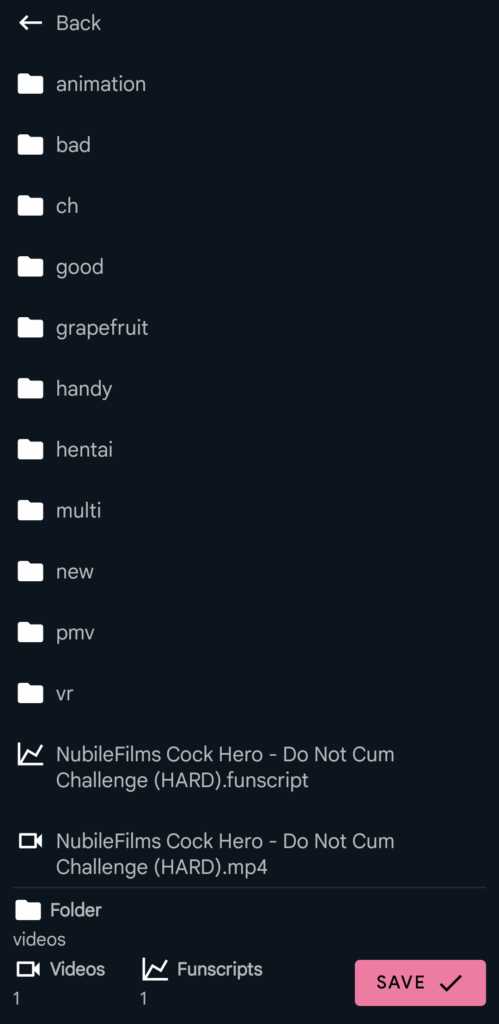
You’ll then be able to browse the folder using the same interface as for SMB:
- Navigate through visible folders
- See how many videos and Funscripts are in each
- Tap Save when you’re in the folder you want to add


