Add a Local Folder
A local folder gives FunFlixDroid access to the videos and scripts stored on your phone or SD card.
Add a local folder
- Open the Library tab, then Folders, and tap Add Folder. On a new library, tap Add your first folder.
- Choose Local Folder.
- Android’s folder picker opens. Go to your folder and tap Use this folder.
- Tap Allow to give FunFlixDroid access to it.
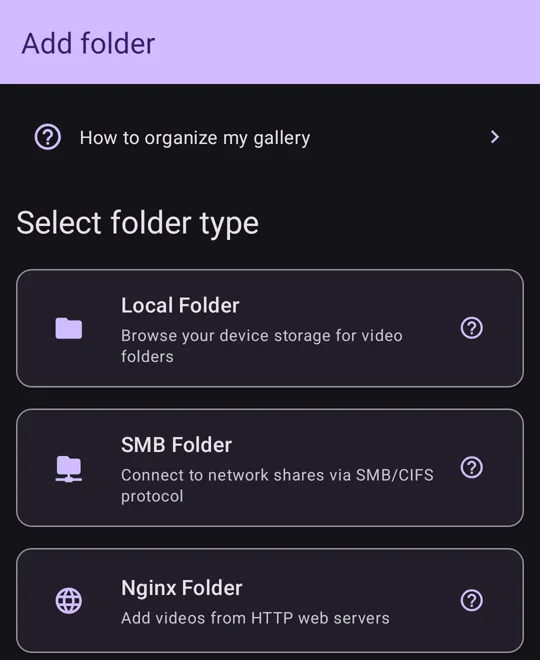
The folder then appears in Folders, and its videos in Videos once scanned.
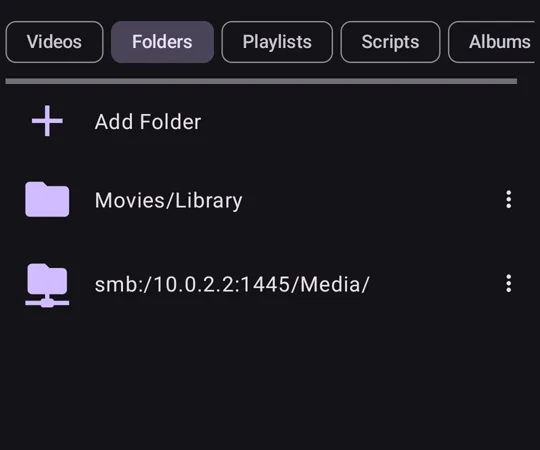
Android refuses some locations, such as the root of the storage: it asks you to choose another folder. Pick or create a subfolder, such as Movies/Library.
Subfolders are included
FunFlixDroid scans the folder and all its subfolders. If you choose:
/storage/emulated/0/Videosand it contains Videos/PMV/ and Videos/CH/, everything in the three folders appears under the single source “Videos”. To browse PMV and CH separately, add each as its own folder instead.
Added new files?
Tap the three dots next to the folder, then Scan Folder.
Next
Check that your scripts are named like your videos, then play one.
Updated 5 November 2026