Add a SMB Folder
SMB (Server Message Block) is a protocol that allows you to stream videos and scripts directly from another device (like a NAS, PC, or server) over your local network.
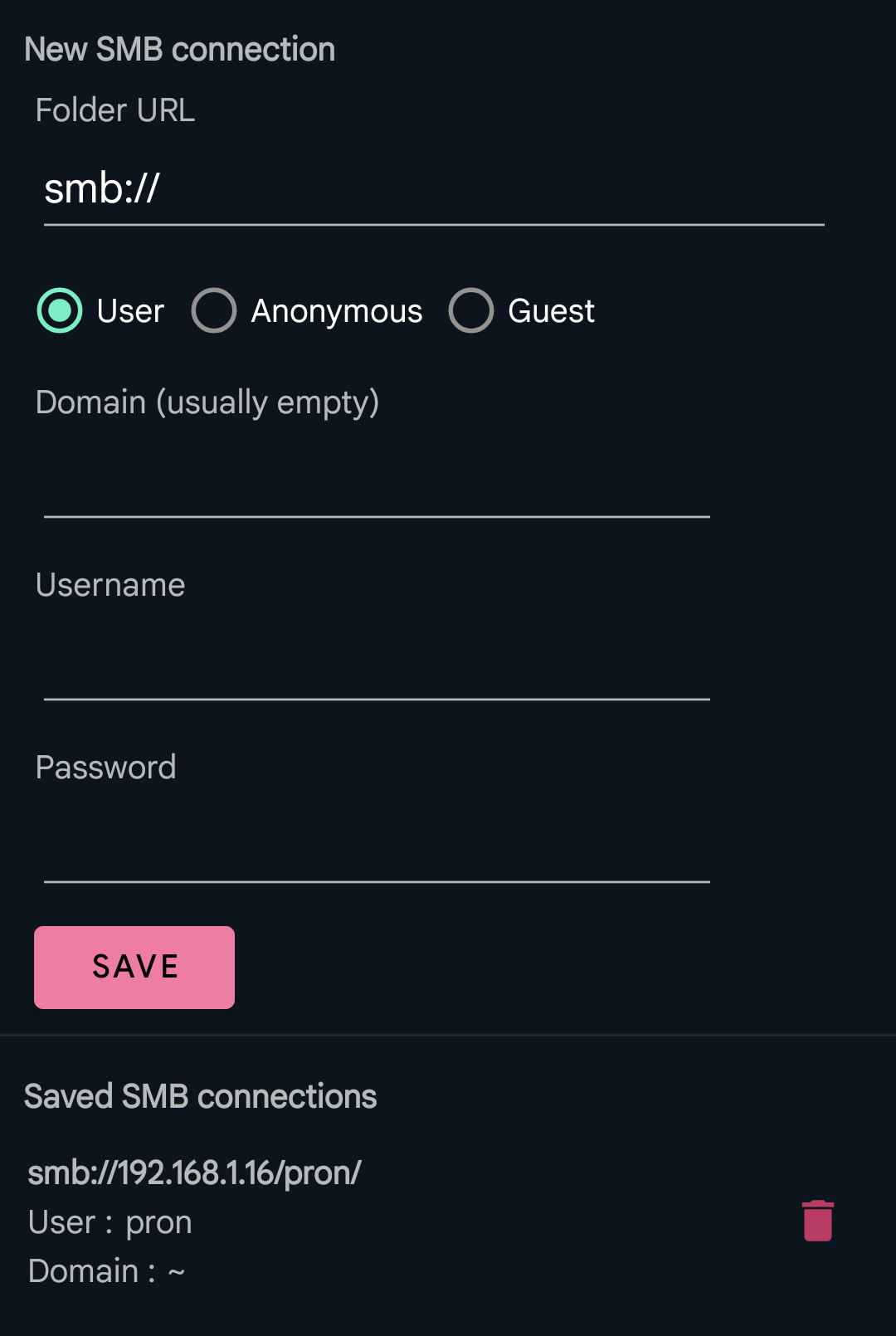
🚶♂️How to Add an SMB Folder
- From the Home screen, tap Gallery
- Tap Add Folder
- Choose SMB Folder from the source type options
You’ll then be prompted to either create a new SMB connection or use an existing saved connection.
➕ Create a New SMB Connection
Fill in the following fields:
- Folder URL: The root folder of your SMB share (e.g.
smb://192.168.1.10/Media) - Login Type:
- User (requires credentials)
- Anonymous / Guest
If you select User, you’ll also need:
- Domain (optional, often left blank)
- Username
- Password
Once filled, press Save.
📂 Browse the Folder
After connecting (either with a new or saved connection), a simple built-in file manager will open.
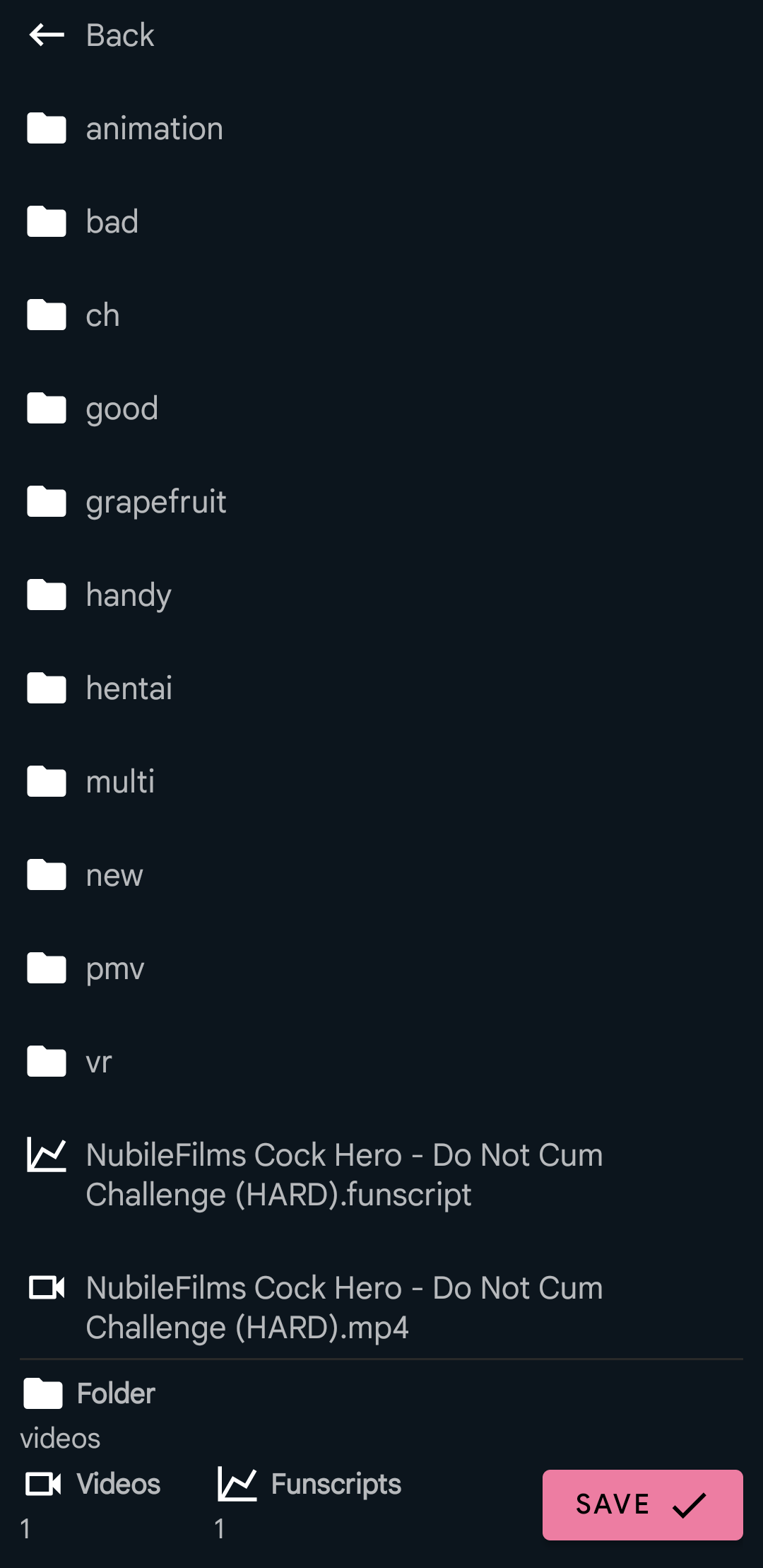
Here, you can:
- Browse through your SMB folder structure
- See the list of folders and files
At the bottom of the screen, you’ll find:
- 📁 Current folder name
- 🎞️ Number of video files
- 📜 Number of Funscript files
Once you’re in the folder you want to add, tap the Save button.
Updated 9 June 2025