Funscripts in VR on Meta Quest
To use funscripts on a Meta Quest, run the video in a VR player in the headset, and let FunFlixDroid on your Android phone follow it and drive your toy. The phone doesn’t play the video in this setup: it reads the playback position over your local network and keeps the script in sync.
FunFlixDroid is built and tested as a phone app. This guide doesn’t cover installing it on the headset itself.
What you need
- A Meta Quest with HereSphere or DeoVR
- An Android phone with FunFlixDroid and your toy connected to it
- Both on the same local network
- The funscripts in a FunFlixDroid source, named like the videos
Set it up with HereSphere
- In HereSphere, go to Settings → User → Enable Timestamp Server.
- Find the headset’s IP address in the Quest’s Quick Settings → Wi-Fi, under your connected network.
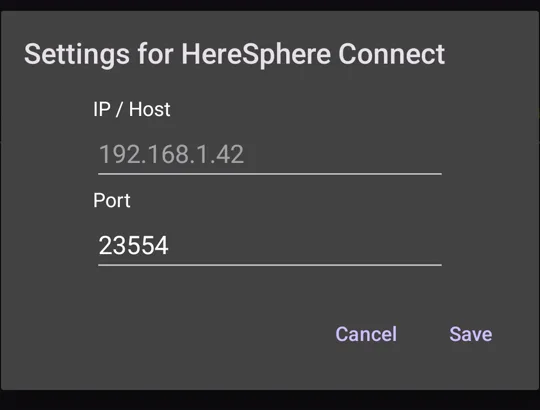
- On FunFlixDroid’s Home tab, tap the button left of the player’s name and choose HereSphere Connect. Tap the settings button next to its name, enter that address and port
23554, then Save. - Play a video in HereSphere. FunFlixDroid detects the file name and loads the matching script.
The HereSphere guide has the details and screenshots.
The chip next to the player’s name shows when it is connected.
With DeoVR
Turn on Enable remote control in DeoVR’s settings, then choose DeoVR Connect in FunFlixDroid and enter the headset’s address. The DeoVR guide has the steps.
No Quest? Use the phone as the headset
The VR Player plays 180° and 360° videos on the phone itself, in a Cardboard-style viewer, with no separate headset app. Your toy is then driven by the same phone.
If the script doesn’t load
- Check the script’s file name matches the video’s: matching relies on it.
- Check both devices are on the same network, and the address is still right, as it can change.
- Check the toy reacts to the Test button in the Devices tab.
Updated 5 November 2026