User guide/Enjoying Your Content
Queue and Playlists
FunFlixDroid has two ways to line up videos. The queue is what plays now, and playlists are lists you keep for later.
The queue
The bar above the bottom tabs shows the current video and the size of the queue. Tap the “1 video” button to open it. In the player, tap Queue at the bottom right.
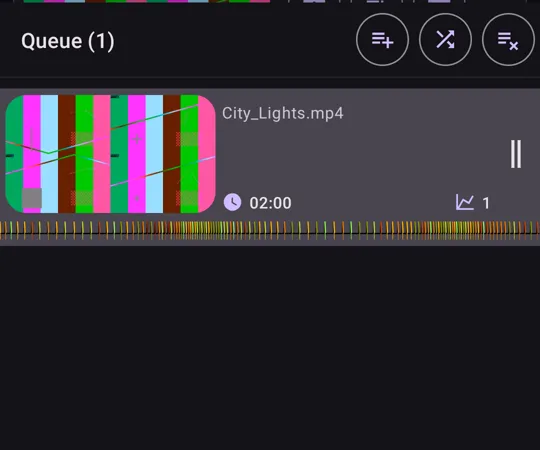
- Add: tap a video in the Library. To add a whole folder, tap its three dots, then Add to queue.
- Reorder: drag a video by its handle.
- Remove: swipe it left or right.
- Shuffle and Clear: the buttons at the top. Clearing also stops the current video.
The queue is kept between sessions. You can turn that off with the restore queue on startup setting.
What tapping a video does can be changed: see Managing Your Library.
Playlists
Open Library → Playlists. You can add a video from its three dots, a whole folder from the folder’s menu, or the video you’re watching from the player or the Home tab.
There are two kinds:
- Playlists, which you fill and order yourself.
- Smart playlists, which update themselves from search criteria and filters. A few come by default, and the editor lets you make your own.
Albums, in their own tab, are another way to group videos.
With which players
The queue works with Local / Chromecast, Funscript Only, Web Browser Cast and the VR player.
With HereSphere Connect, DeoVR Connect and VLC Connect, the external player controls playback: FunFlixDroid provides the script and the sync, and playlists stay in that player.
Updated 5 November 2026