User guide/Enjoying Your Content
Player Features Overview
Here’s what you can do while watching, in the default player. Tap the video to show or hide the controls.
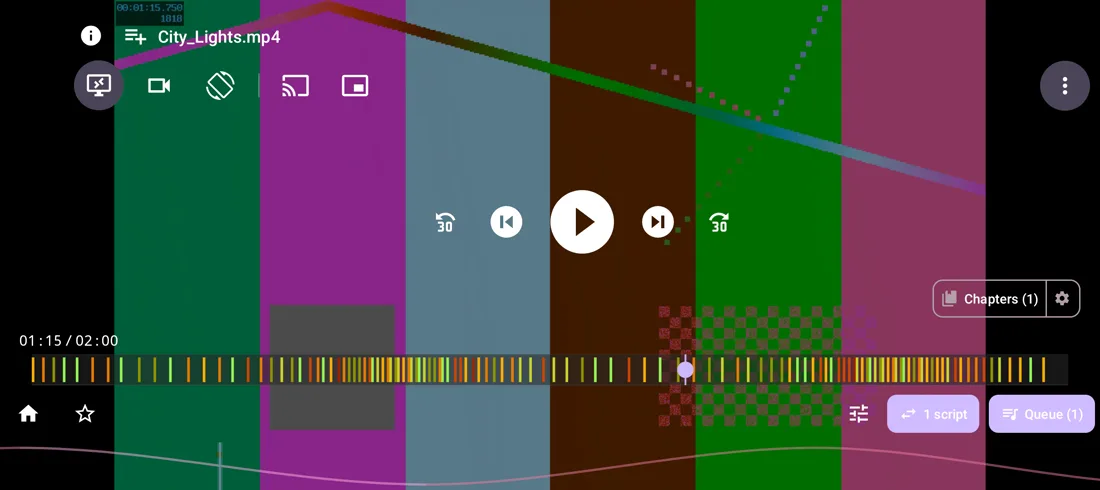
The controls
Top: the video’s info and title, adding it to a collection, then the buttons to switch player, change the display mode, rotate the screen, cast and go picture-in-picture. The three dots open the Player settings (see below).
Center: back and forward 30 seconds, previous and next video, play and pause.
Seek bar: the script’s heatmap, so you can see where the action is.
Bottom: Home, a star to rate the video, quick script settings, the script switcher when a video has several scripts, and the queue. Chapters sits above them.
Gestures
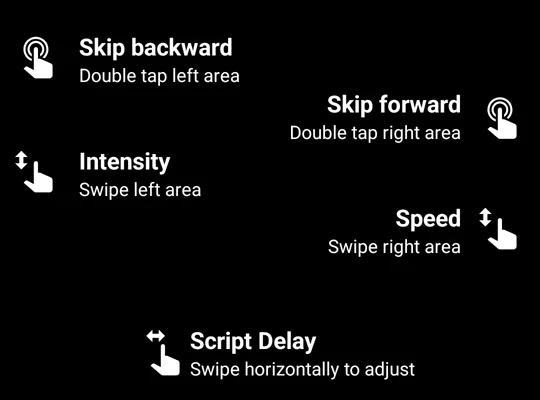
| Gesture | Default action |
|---|---|
| Double tap, left or right | Skip backward or forward |
| Vertical swipe, left side | Script intensity |
| Vertical swipe, right side | Script speed |
| Horizontal swipe | Script delay |
Each swipe can be set to intensity, speed, volume, script delay, seeking or brightness in Settings → Player, along with the skip length.
Player settings
The three dots at the top right open this window:
- Tools: Scan for Devices, Voice Control and Lock Controls
- Customize: Arrange overlays, Advanced settings and Help
- Audio & video: the video decoder, for a video that stutters or won’t play, and the Bluetooth audio delay, which holds the picture back to match Bluetooth headphones or speakers, with the scripts following the picture
Overlays
Overlays are small floating panels over the video. Tap Arrange overlays to see them all, even the hidden ones:
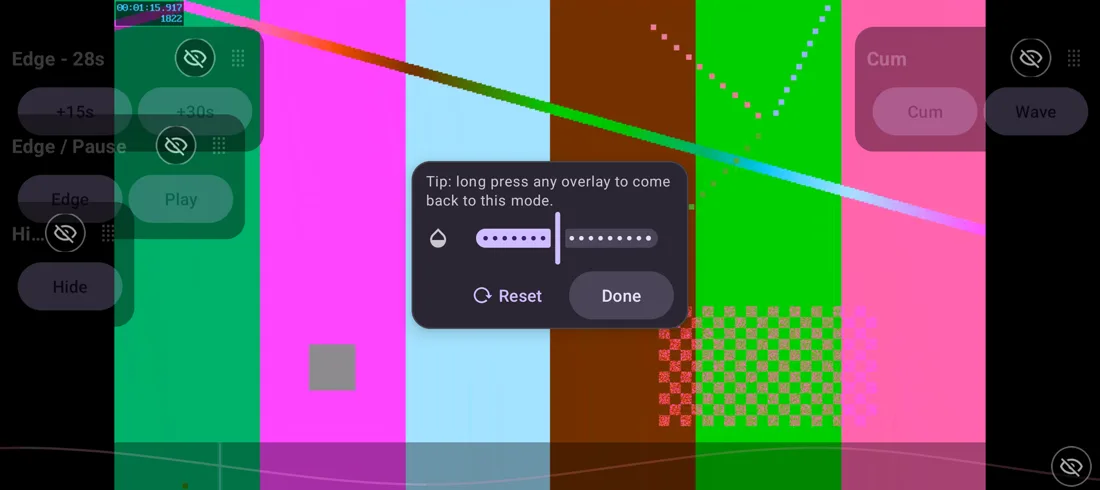
- Tap an overlay’s eye to show or hide it.
- Drag it by its dots to move it. Positions are saved separately for portrait and landscape.
- The slider sets their opacity. Reset restores the layout and Done closes this mode.
- Later, long press any overlay to come back here.
The overlays are:
- Edge: +15s and +30s stop the toy for that long, with a countdown. Presses add up, and Resume ends it early.
- Edge / Pause: Edge stops the toy at once and becomes Resume. Play controls the video.
- Hide: pauses the video and goes straight to your phone’s home screen.
- Cum: triggers dedicated stimulation presets on demand, such as Wave.
- Script graph: a live view of the scripts along the bottom of the screen. Its eye is at the bottom right.
More
- Skip to action: jump over long gaps to the next action, by hand or automatically after a delay you choose.
- Chapters: detected from the script, with a mode that plays only those sections.
- Per-device control: a video with several scripts can send a different one to each toy.
- Voice commands and controller buttons: in Settings → Hands-Free Control and Settings → Button Mappings.
Updated 5 November 2026